
You have an image and a question. Where did this photo come from? Is it real, or made by AI? Who else is using our product shots? What is this lamp and where can I buy it? Each question calls for a different image search technique, and using the wrong one is why so many searches come back with nothing useful.
Image search techniques are the methods for finding, identifying and verifying images: searching by keyword, searching with an image (reverse image search), visual search for objects and products with tools such as Google Lens, checking an image's history with Google's "About this image," and checking for AI generation with watermarks and Content Credentials. For website owners, image search also means making your own images easy for Google Images and Lens to find.
This guide covers each technique, when to use it and how to do it, based on Google's own documentation. It ends with the image SEO practices that help your images show up when other people search.
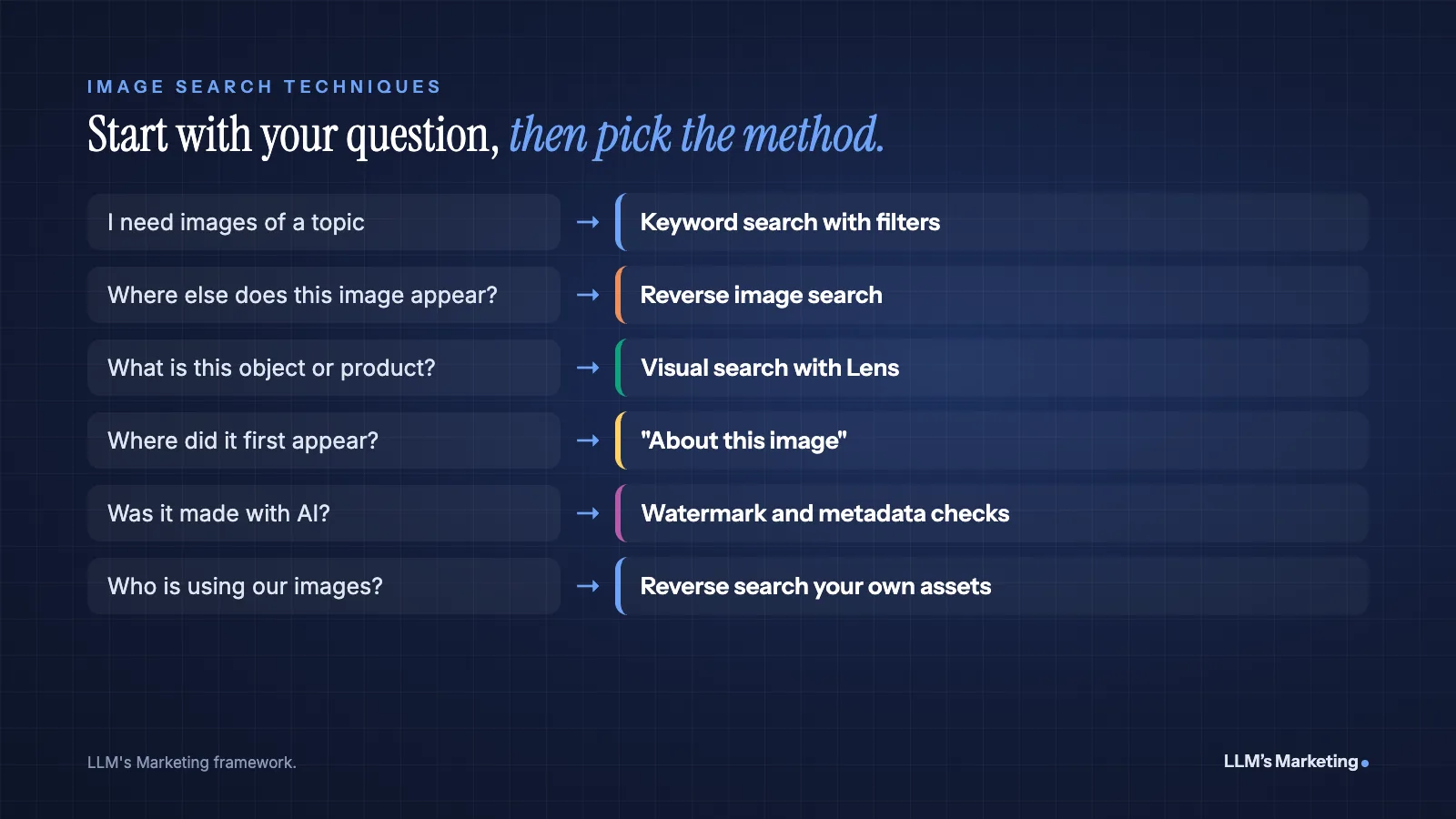
Image Search Techniques at a Glance
Start by matching your question to the right method.
| Your question | Technique | Where to do it |
|---|---|---|
| I need images of a topic | Keyword image search with filters | Google Images, Bing Images |
| Where else does this image appear? | Reverse image search | Google Lens, Bing Visual Search, TinEye |
| What is this object or product? | Visual search | Google Lens, Circle to Search on Android |
| Where did this image first appear? | Image history check | "About this image" in Google |
| Was this made with AI? | Watermark and metadata check | Gemini app, "About this image," file metadata |
| Who is using our images? | Reverse image search on your own assets | Google Lens, TinEye |
Keyword Image Search: Better Than Typing and Scrolling
Keyword search is the classic technique: type words, browse results. Most people stop there, but a few habits make it far more precise.
- Describe what is in the picture, not what it means. "Woman working on laptop at kitchen table, morning light" finds better results than "remote work productivity."
- Use the filters. Google Images lets you narrow results by size, color, type and time, and by usage rights when you need images you can license.
- Add the context word. Words such as "diagram," "infographic," "product photo" or "illustration" change the kind of result you get.
- Search inside a site. Adding
site:followed by a domain limits image results to one website, which is useful for competitor research.
Reverse Image Search, Step by Step
Reverse image search means searching with an image instead of words. The search engine looks for the same image, edited versions of it and visually similar images, and returns the pages where they appear.
On a computer, with Google
Google's help center describes three ways to search with an image from a computer, using Google Lens in most browsers, including Chrome, Firefox, Safari and Edge (Google Search Help):
- Upload a file: go to google.com, click Search by image, choose Upload a file and select the image.
- Drag and drop: drag the image file onto the search box.
- Paste a link: right-click an image on a website, choose Copy Image Address, click Search by image and paste the link.
According to the same page, results can include AI Overviews, results for objects in the image, similar images and websites that use the image or a similar one.
On a phone
On iPhone and Android, open the Google app and tap the Lens camera icon, then take a photo or choose one from your gallery. In Chrome, you can long-press an image to search it with Google Lens. On Android phones that support Circle to Search, you can circle part of anything on screen to search it.
How to get better matches
- Use the largest, clearest version you have. Tiny thumbnails and heavily compressed screenshots match less reliably.
- Crop to what matters. If the image is a collage or a busy scene, crop to the single object or face you care about.
- Use a frame for video. Pause a video at a clear frame, take a screenshot and search that.
- Try more than one engine. Google Lens, Microsoft Bing Visual Search and TinEye, a dedicated reverse image search engine, index different parts of the web. A result missing in one may appear in another.
- Mirror or straighten if needed. Flipped, rotated or skewed copies can confuse matching, so search a corrected version too.
How to Find the Original Source of an Image
Finding where an image first appeared is the core of fact-checking and of tracking down a photographer to credit or license from. Google built a tool for exactly this.
"About this image" in Google Search shows when Google first saw the image or visually similar images, other pages that use similar versions, and pages where the image may have been seen much earlier than other results (Google Search Help). It can also show image details such as credit information when the file carries that metadata.
Source-finding checklist
- Run a reverse image search and open "About this image" for the result
- Note the earliest date Google reports, then open those early pages
- Look for a photographer credit, agency watermark or original caption
- Check whether the earliest page is a news outlet, stock library, portfolio or social post
- Treat a single early result as a lead, not proof, and look for confirmation
Remember that "first seen by Google" is not the same as "first published." An image can exist for years on pages Google never crawled.
How to Check if an Image Is AI-Generated
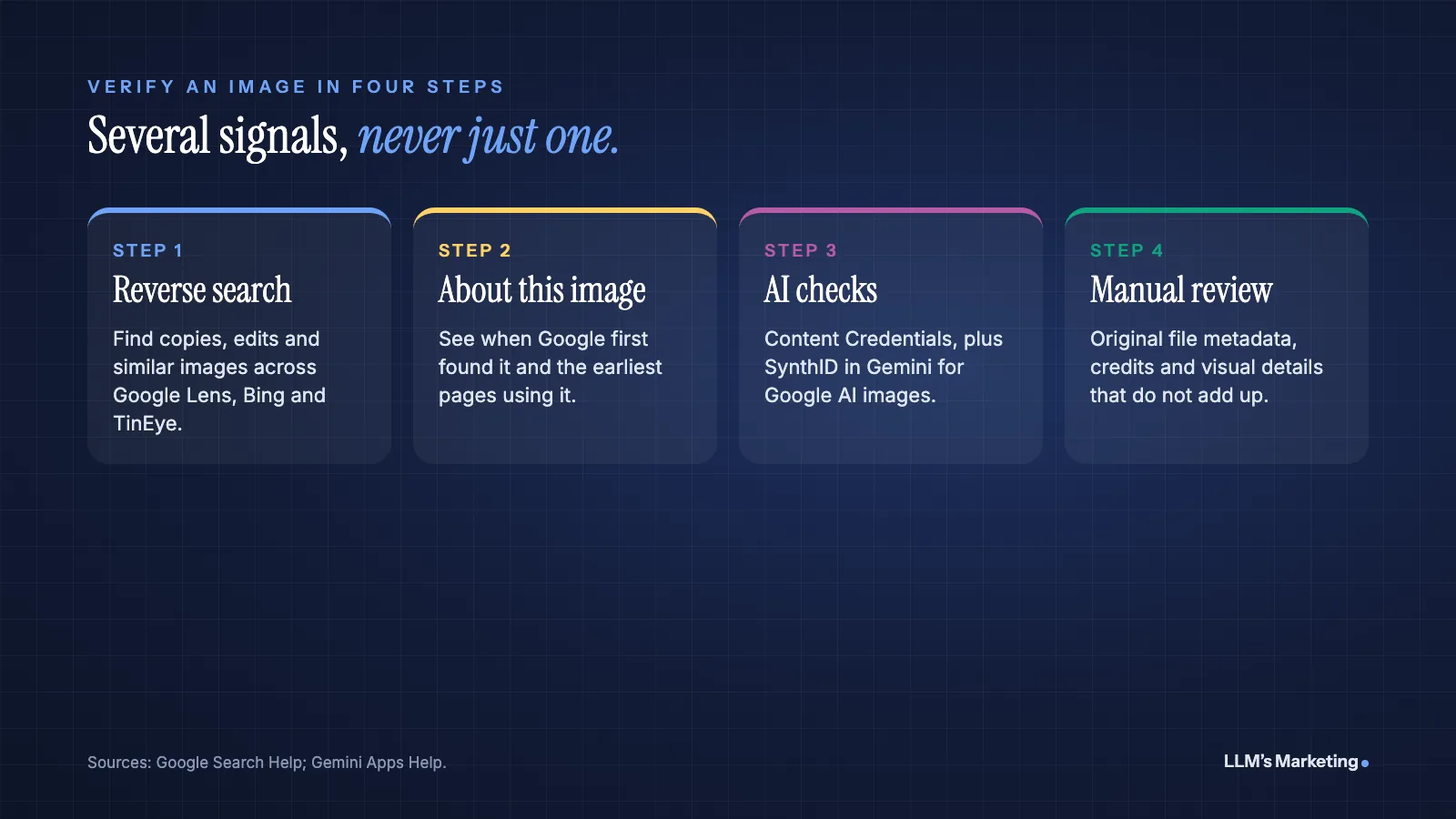
There is no single test that reliably catches every AI image. What exists today is a set of signals, each with limits. Use several.
Invisible watermarks: SynthID in the Gemini app
Google's SynthID adds an invisible watermark to images, video and audio made or edited with Google's AI models. In the Gemini app, you can upload a file and ask "Is this AI-generated?" Gemini checks for SynthID and for Content Credentials. Google is clear about the limits: Gemini can currently only recognize content created by Google AI tools, and there is a usage quota of about 10 image checks in any 24-hour window (Gemini Apps Help). A result showing no watermark means the image was not made with Google AI, not that it is a real photo.
Content Credentials and "About this image"
Content Credentials are metadata based on a standard from the Coalition for Content Provenance and Authenticity (C2PA) that records how a file was created and edited. If an image contains C2PA metadata, Google can extract it and may show in "About this image" how the image was created or whether it was edited with AI tools (Google Search Central). Google also warns that credit and digital source type metadata can be modified with image generation and editing tools, so it may not be accurate.
Manual checks that still work
- Reverse search it. A real news photo usually has a trail of earlier copies and credited sources. A brand-new image with no history deserves more scrutiny.
- Inspect the original file. If you have the original rather than a screenshot, camera metadata (EXIF) such as camera model and date can help. Google's Gemini help page suggests the same check, but many platforms remove this data when images are uploaded, and it can be edited.
- Look closely. Text that dissolves into nonsense, inconsistent shadows and reflections, and hands or jewelry that do not make physical sense are common tells, although newer models make fewer of these errors.
Visual Search for Objects and Products
Visual search identifies what is in a picture rather than where the picture appears: a plant, a landmark, a pair of sneakers, a chair in a hotel lobby. Google Lens is the main tool here, and it is used at a huge scale. Google said in October 2024 that Lens was used for nearly 20 billion visual searches every month (Google), and Think with Google reported that 1 in 4 visual searches using Lens has commercial intent (Think with Google).
For shoppers, that means photographing a product to find it, compare prices or see similar styles. For businesses, it means your product images are part of a search channel whether you optimize them or not. Our guide to local SEO for ecommerce covers how product pages and listings fit into that picture.
Image Search Techniques for Marketers and SEOs
Image search is also a research tool. A few uses pay off quickly:
- Find unlinked uses of your images. Reverse search your original charts, infographics and photos. Sites that use them without a link or credit are natural outreach targets: ask for a credit link, which is a far easier conversation than cold link building.
- Protect your brand and products. Search your product photos to find marketplace listings, fake stores or ads using them without permission.
- Research competitors. Combine
site:with Google Images to see what visuals a competitor publishes, and reverse search their key images to see who links to them. - Check stock images before you use them. A quick reverse search shows whether a stock photo already appears on dozens of competitor sites.
- Verify before you publish. Run the source and AI checks above on any image you did not create, especially for news or claims.
Creators face the same problem from the other side. Our guide on SEO for influencers covers how creators keep their name and work findable across search platforms.
How to Make Your Own Images Findable in Google Images and Lens
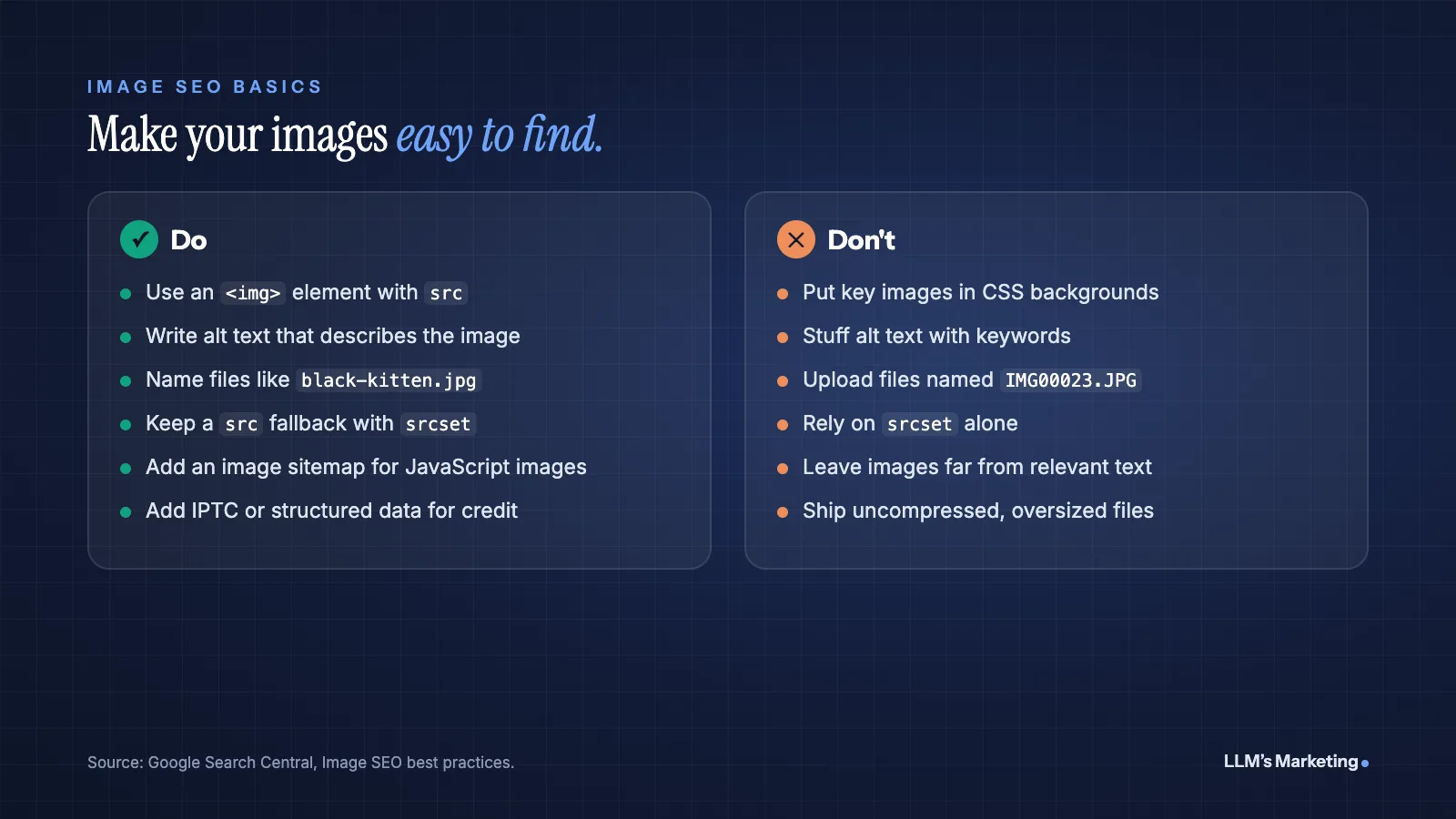
If people use image search to find products, ideas and sources, your images should be easy for Google to find and understand. Google's image SEO best practices are specific:
Use real HTML image elements
Google finds images in the src attribute of the <img> element, including inside a <picture> element. Google does not index CSS background images. If you use srcset for responsive images, Google recommends always specifying a fallback URL in src, because some browsers and crawlers do not understand srcset.
Write alt text and give images context
Google extracts information about an image from the page, including captions and image titles, so place images near relevant text. Alt text should describe the image usefully. Google warns that filling alt attributes with keywords creates a poor user experience and may cause your site to be seen as spam.
Use descriptive filenames and supported formats
Google says filenames give "very light clues" about an image, so prefer something like my-new-black-kitten.jpg over IMG00023.JPG. Google Search supports BMP, GIF, JPEG, PNG, WebP, SVG and AVIF. Compress images, since they are often the largest part of a page's weight. Our Core Web Vitals guide explains how heavy images slow down Largest Contentful Paint.
Add image sitemaps where needed
An image sitemap helps Google discover images it might not otherwise find, such as images loaded with JavaScript. You can create a separate image sitemap or add image tags to your existing sitemap (Google Search Central).
Add creator and license metadata
When you add structured data or IPTC photo metadata, Google Images can show who created an image, credit information and how people can use it. Licensing information can make an image eligible for the Licensable badge in Google Images (Google Search Central). For photographers, publishers and brands with original visuals, this is a direct way to get credit when people find your work through image search.
Images also matter for AI search. Google's AI features draw on its Search index, and Lens results can include AI Overviews, so images that are crawlable, described and placed in relevant context are the ones Google's systems can understand and show. Our guide on how to SEO a website puts image work in the context of a full site audit.
Common Image Search Mistakes
- Trusting one engine. No reverse image search index covers the whole web.
- Treating "no match" as proof. An image with no matches may be new, cropped, edited or simply not indexed.
- Treating "no watermark" as real. SynthID only identifies Google AI content, and metadata can be stripped or altered.
- Searching tiny screenshots. Find or request the original file whenever possible.
- Assuming search results grant usage rights. Finding an image does not mean you can use it. Check the license or ask the creator.
- Hiding your own images in CSS. Background images are not indexed, so important visuals belong in
<img>elements.
Frequently Asked Questions
What is the best image search technique?
It depends on the question. Use keyword search to find images of a topic, reverse image search to find where an image appears, visual search with Google Lens to identify objects and products, "About this image" to see when Google first found an image, and SynthID or Content Credentials checks when you suspect AI generation.
How do I reverse image search on Google?
On a computer, go to google.com, click Search by image, then upload a file, drag the image into the search box or paste an image link. On a phone, open the Google app and tap the Lens icon to use your camera or a saved photo. Results show matching and similar images and the pages that use them.
How can I tell if an image is AI-generated?
Combine several checks. Upload it to the Gemini app to check for Google's SynthID watermark and Content Credentials, look at "About this image" in Google, reverse search it to find its history, and inspect the original file's metadata if you have it. Each check has limits: SynthID only detects Google AI content, and metadata can be removed or changed.
Is reverse image search free?
Yes. Google Lens and Bing Visual Search are free to use, and TinEye offers free searches. Some specialized tools for monitoring image use at scale are paid.
How do I get my images to show in Google Images?
Use standard HTML image elements rather than CSS backgrounds, write descriptive alt text, place images near relevant text, use descriptive filenames and supported formats, and add an image sitemap if images load with JavaScript. Adding creator and license metadata can earn extra details and the Licensable badge in Google Images.
Where to Start
Bookmark the three Google tools that do most of the work: Search by image for reverse search, "About this image" for history, and Gemini for AI checks. Then turn the techniques on your own site: reverse search your best original images to find uncredited uses, and audit whether your important visuals use proper image elements, alt text and descriptive filenames.
If you want help making your images, pages and brand easier for Google and AI assistants to understand, our AI SEO and content service covers technical and on-page SEO, and our AI search visibility service focuses on how you appear in AI answers. You can also book a free call.
Are your images helping or hurting your search visibility?
Send your website and I'll review how your images and pages appear in Google, Google Images and AI answers, then reply personally with the first fixes I would make.